Overview
- Cisco use Talos for Security Intelligence
- special FTD designed to quickly drop certain traffic.
- traffic originated by known malicious sources
- IP address, URL and domains
- traffic originated by known malicious sources
- Improve performance early phase of ACP
SI sources
- feeds: require threat license
- Manual list: static IP, URL, domain to blacklist or whitelist.
- Dynamic blacklist: update the feed (object → object management → update feeds)
DNS policy
- enabled domain support for SI
- support DNS queries for known malicious or unsafe domain.
- no ip address → no traffic inspected
- support DNS queries for known malicious or unsafe domain.
- DNS policy consist of whitelist and blacklist.
- Flow for checking DNS entries policies:
- FTD will check record in the cache, if no entries it will forward to FMC
- FMC will check the record in cache, if no entries it will forward or ask to cisco Talos
- Rule action determine ultimate handling of matching DNS traffic
- whitelist:
- passes traffic to the ACP
- monitor:
- traffic is logged but still evaluated by other rules
- Blacklist:
- Blacklist
- Domain not found
- DNS response NXDOMAIN
- Sinkhole
- DNS response with false IP
- whitelist:
- Configuration
- The system-provided DNS policy is used by default.
- Custom policy: policies → access control → DNS
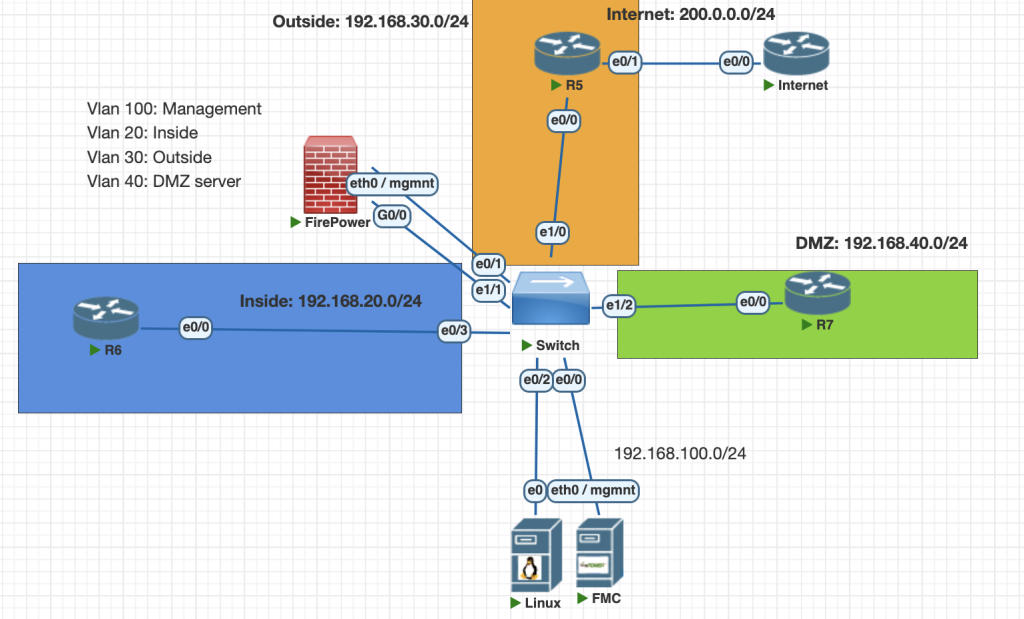
Topology
Testing Scenarios
- Block a known source of malware traffic with Security Intelligence, Infected system uses an IP address 200.0.0.2 and is located on the outside.
- Configure a new DNS policy, You are certain that a domain “hackers.com” contains malware. Drop all DNS traffic to this domain.
- Create sinkhole domain to redirect to ip 1.2.3.4 ipv6 1:2:3::4 , testing using detik.com
Configurations
if you have feed license, you can update source intelligence to latest data from menu:
object --> object management --> network list and feeds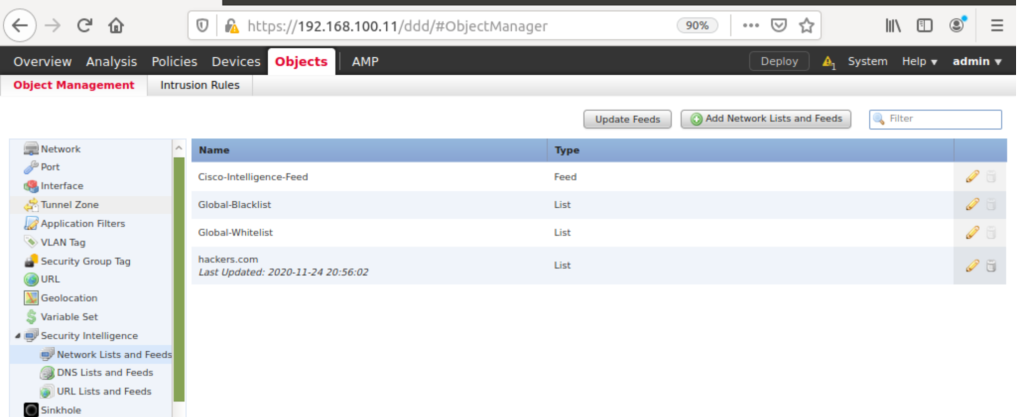
- Create new policy dns
policies -> DNS -> add DNS policy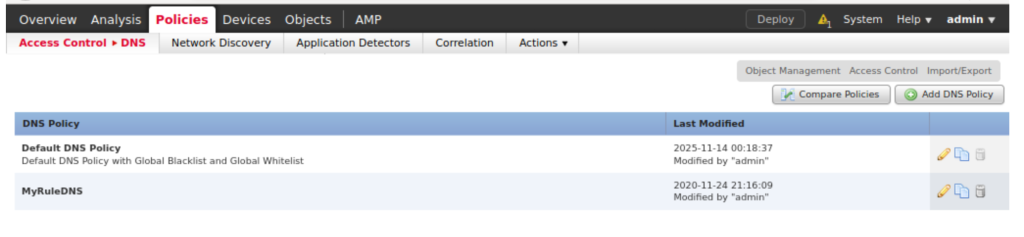
2. Add rule for policy like this:
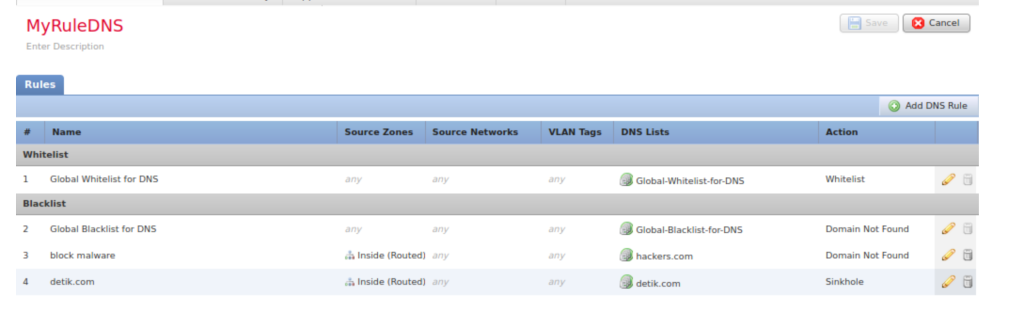
3. to define rule sinkhole first create object dns sinkhole
object --> object management --> sinkhole
4. Apply the new rule DNS to ACP
policies --> access control --> security intelligence --> change to our policy DNS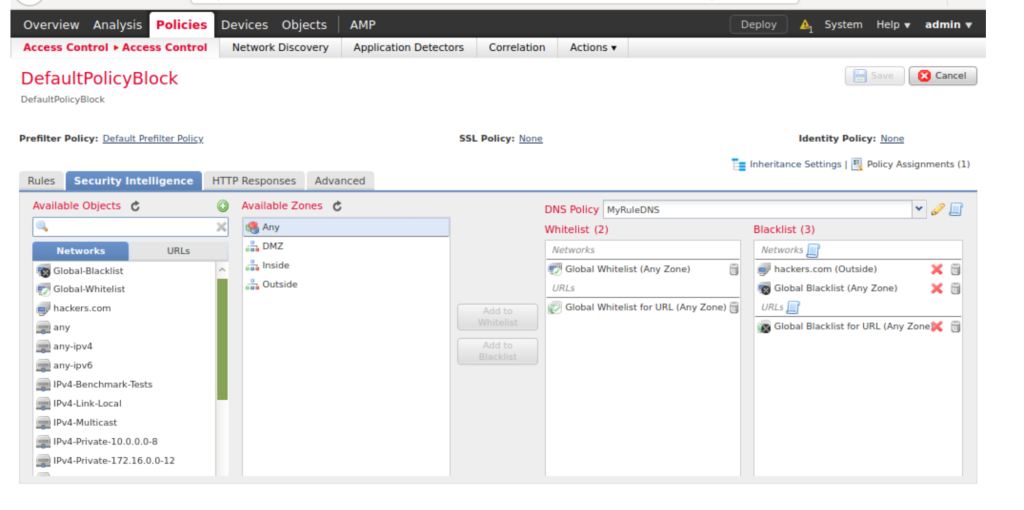
Verifications
- First we can try from R6 as a inside host to ping hackers.com.
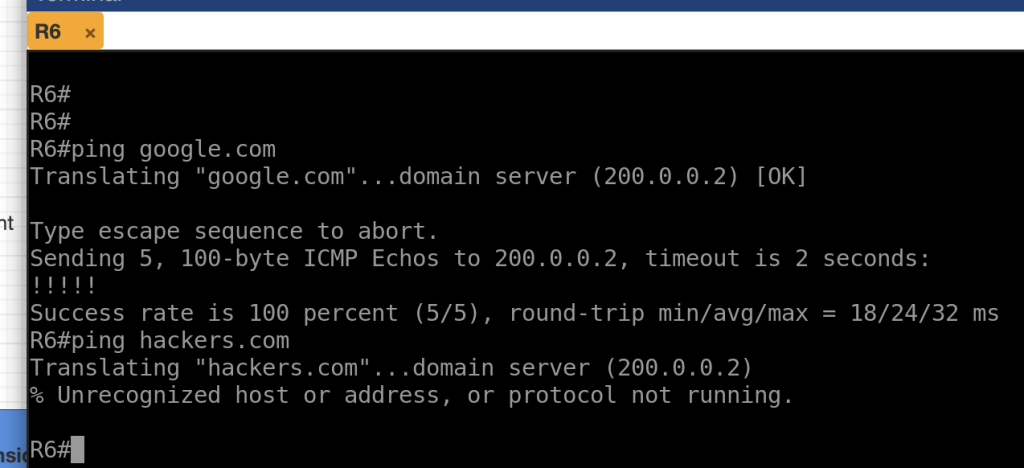
2. if check from FMC we can see hackers.com is blocked
analysis --> connections --> events/security intelligence events 

3. verification for sinkhole domain , we can test from R6 as inside host ping detik.com
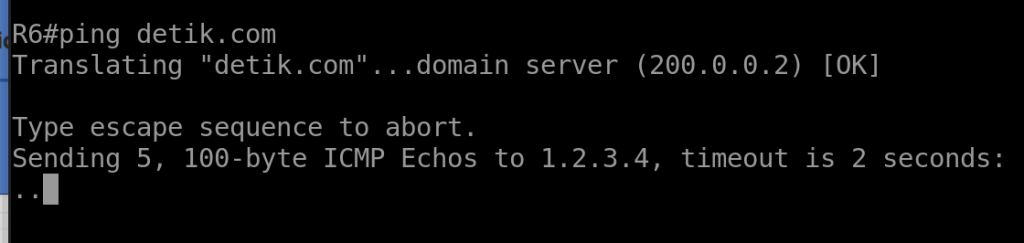
from the output above we see the dns request is redirect to IP 1.2.3.4 even the connection to DNS server is established.
we can also check from FMC dashboard to verify


Conclusions
- if you have license for feed please update the database and use the categories to block certain domain.
- you can also whitelist/blacklist domain without license using manual list.
- Sinkhole domain help us to redirect response query ip from dns to other site, for example you can use this to redirect to home company page.
If you found this useful, subscribe to newsletter